
Hints and Tips - XPLAN shortcuts

XPLAN is a powerful financial planning software that's trusted by financial advisers and wealth management professionals worldwide. It's loaded with impressive features and functionalities, but navigating through the software can be a bit time-consuming at times. The solution? XPLAN shortcuts!
These are a series of keyboard commands that allow users to perform common tasks with ease, saving time and increasing productivity. With these shortcuts at your fingertips, you'll be able to streamline your workflow and get more done in less time. In this guide, we'll introduce you to some of the most useful XPLAN shortcuts and show you how to use them to optimise your work in XPLAN.
Shortcuts are the secret weapon that every XPLAN user needs to know about! They're a game-changer that can save you loads of time and make your workday more efficient. So, let's dive into the top five shortcuts that you can start using right away:
-
To open the global navigation panel, just enter a back-slash "\" and start typing directly into the search bar. Let XPLAN do the rest!
-
To open the search panel use the forward-slash "/" and start typing to find clients without having to click & slide the panel open first.
-
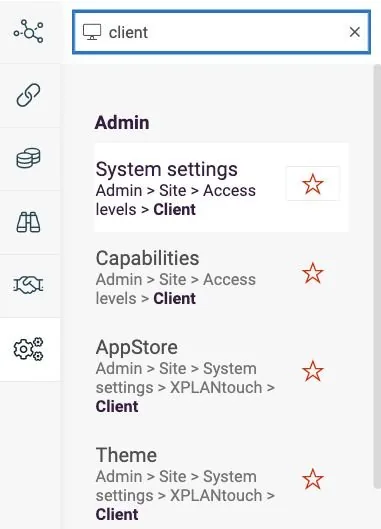
Star your favourite menus in your Links page in XPLAN - This is a super-handy feature that allows you to create your own shortcuts to frequently used menus in XPLAN, making them just a click away.
How to do it? From the global navigation menu, search for your menu page. For instance, if you search for the import summary, an orange star will appear next to its search result. Click on the orange tab and save it to your links page!
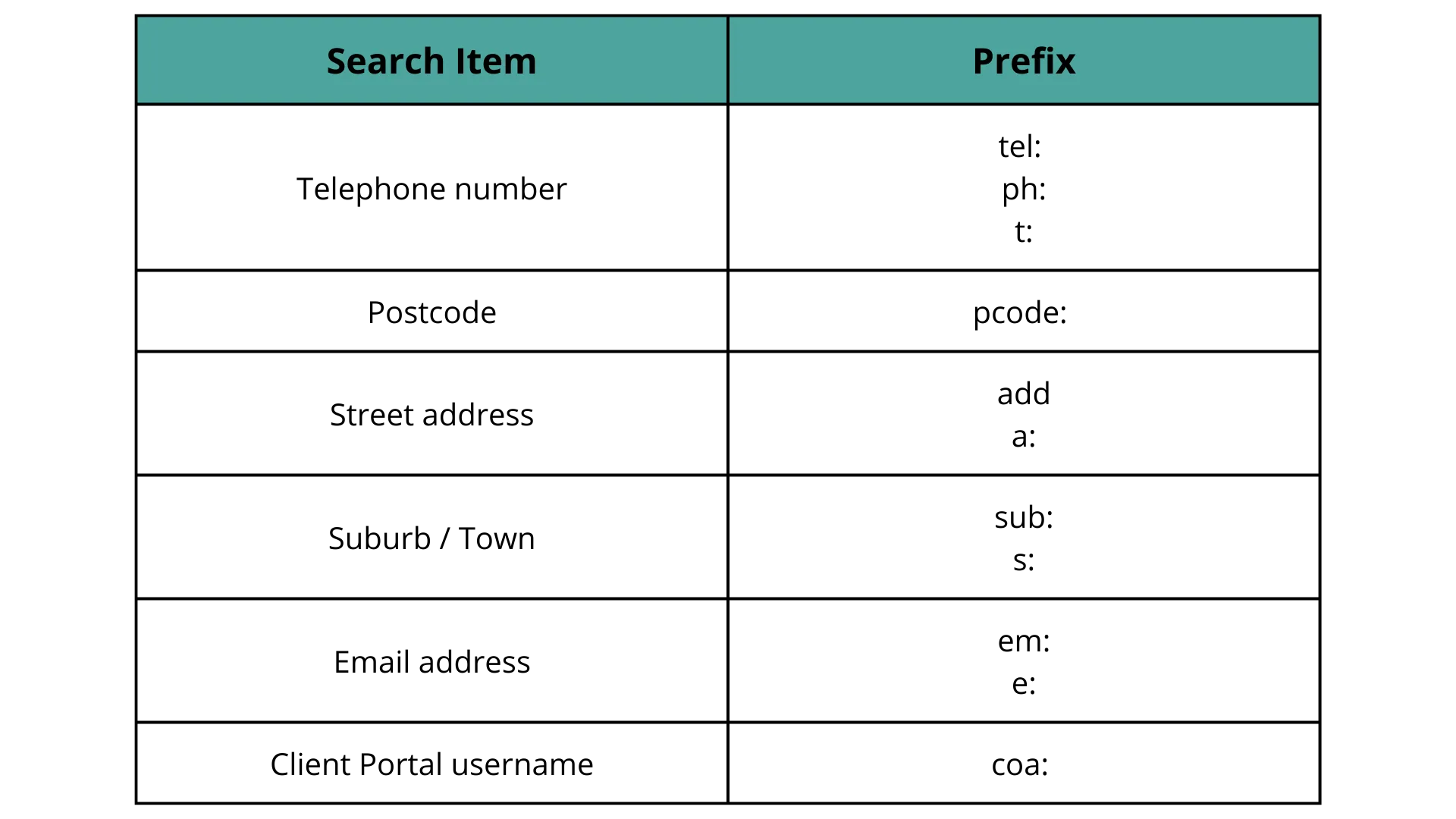
4. Having problems remembering client names but have their phone numbers? No problem! Use the power of XPLAN to search for clients based on whole or part phone numbers and other key client information without ever needing to memorise your client's name.
Below are other key shortcuts to help find your clients:

- Set global team links on the Links page - This is another great feature that allows you to save pages from external providers such as brokers, government websites or within XPLAN that your practice uses on a regular basis. It's simple to do, just select edit links at the bottom of the Links page.
We hope you're feeling more confident about using XPLAN shortcuts to get the most out of this fantastic software. If you need further assistance, don't hesitate to call us here or on 1300 361 973 to schedule a confidential discussion. At Planfocus, we're committed to helping you create and find efficient advice practices!